
Which sessions you can share
Sharing works for Claude Code sessions in the cloud, the ones you see at claude.ai/code. Anthropic's sharing instructions sit in its documentation for Claude Code on the web, alongside archiving and deleting sessions.
If you work in a terminal, your sessions run on your computer instead. Anthropic's share instructions don't cover them; the options for local sessions are covered further down. For what cloud sessions start with compared with your local setup, see our guide to Claude Code cloud sessions.
What a shared link shows
The link opens the session for the recipient. Anthropic sets one expectation: "Recipients see the latest state when they open the link, but their view doesn't update in real time."
So a shared session behaves like a snapshot that refreshes when someone opens it. If Claude keeps working after you send the link, a recipient who already has the page open won't see new steps appear. Opening the link again shows the latest state.
The documentation describes what recipients can see, not what they can do. It doesn't describe a recipient continuing your session or sending it messages. Treat a shared link as a way to show the work.
Who can open it: Team and Enterprise
On Team and Enterprise accounts, the visibility options are Private and Team. Anthropic explains: "Team visibility makes the session visible to other members of your claude.ai organization".
Three more rules apply:
- Repository access is checked. "verification is enabled by default, based on the GitHub account connected to the recipient's account". A teammate without access to the repository doesn't get the session just because they're in your organization.
- Your name shows. "your account's display name is visible to all recipients with access"
- Slack sessions are shared automatically. Sessions started from Claude in Slack are automatically shared with Team visibility.
That last point catches people. If you start Claude Code work from Slack, it's visible to your organization by default.
Who can open it: Pro, Max, and Ultra
On personal plans, the options are Private and Public. "Public visibility makes the session visible to any user logged into claude.ai".
The other rules are different from Team:
- Repository access isn't checked by default. Anthropic says verification "isn't enabled by default" on these plans.
- Sensitive content is your job. Anthropic's note is blunt: "Sessions may contain code and credentials from private GitHub repositories"
Public means anyone with a claude.ai account and the link. If the session worked in a private repository, the link can show that code to people who don't have access to the repository, unless you turn on the access requirement.
Settings that change what recipients see
Two settings control the rest: requiring recipients to have repository access, and hiding your name from shared sessions. Anthropic says to open Settings on claude.ai, then:
- If the Settings menu shows Code instead of Claude Code, go to Privacy.
- Otherwise, go to Claude Code > Sharing settings.
On a personal plan, turn on the repository access requirement before you share anything from a private repository. Then a public link works only for people who could already see the code.
Sessions you can't share with a link
Not every kind of session has the share option.
Threads in Claude Code Projects. Projects run work as threads, which are cloud sessions too. Anthropic's Projects documentation says "A project belongs to one user. You can't share a project or its threads with another user, and thread transcripts don't have the share option other cloud sessions have."
Cowork sessions. Cowork is a different product, and its rule is explicit: "Sessions can't be shared with others, but you can share individual artifacts you create during a session."
Local sessions in the terminal or IDE. These run on your computer and aren't on claude.ai/code unless you move them there.
Options for a local session
- Export it.
/exportwill "Export the current conversation as plain text." Send the file. - Send it to the cloud from Desktop. Anthropic notes that the Claude Desktop app "can send a local session in its Code tab to the cloud from its Open in menu." Once it's a cloud session, the share toggle applies.
- Remote Control is for you. It "lets you monitor and steer a local CLI session from claude.ai or the Claude app." It's a way to reach your own session from another device, not a share link.
How this differs from sharing a Claude chat
Sharing an ordinary Claude chat works differently, and the two are easy to mix up because both start from claude.ai.
A chat shared with a public link is a snapshot frozen at the moment you share it. Anthropic's chat-sharing article says "It shares a snapshot of the chat as of the moment you shared it. Messages you send afterward stay private unless you update the snapshot." It adds: "Anyone with the link can open it. No Claude account is required."
A shared Claude Code session moves the other way on both points. Recipients see the latest state when they open the link, not the state when you shared it. And Public visibility reaches users logged into claude.ai, rather than anyone at all.
Chats can also be shared with specific people by email, on all plans, and a public chat link can be turned off from the Share menu or from Settings > Privacy under Shared chats. The Claude Code instructions describe visibility levels rather than per-person invites, so for a session, the audience is set by Team or Public, plus the repository access check.
Sharing between your own devices
Some searches for sharing a session are really about one person on two machines. For that, you don't need a share link.
Cloud sessions follow your account, so they're available at claude.ai/code and in the Claude app wherever you're signed in. To bring one into your terminal, --teleport pulls the session and its branch, as long as you're signed in to the same claude.ai account. If the session was compacted, our guide to teleporting compacted sessions explains what arrives. To keep working on a copy while the original runs, see our guide to forking a remote session.
What to check before you share
Run through this list every time:
- Secrets in tool output. Commands Claude ran may have printed environment variables, tokens, or connection strings. Scroll the session before you share it.
- Private code. On personal plans, turn on the repository access requirement before sharing publicly.
- Your name. Hide it in sharing settings if the session is going outside your team.
- Slack-started sessions. On Team and Enterprise, they're already shared with your organization.
- When you're done. Sharing is a visibility setting, so check the session's visibility after the review.
Archive or delete afterward
Archiving removes a session from the sidebar's list; you can find it under the Archived tab at claude.ai/code/sessions and unarchive it. Deleting is different: "Deleting a session permanently removes the session and its data. This action can't be undone."
What people try first
Pasting the transcript into chat. It loses the structure, and it may include secrets you didn't notice. A shared link with access checks is safer.
Expecting a live view. Recipients see the latest state when they open the link, without real-time updates.
Sharing publicly on a personal plan without access checks. Anyone signed in to claude.ai with the link can open it.
Looking for a share toggle on a local session. Export it, or send it to the cloud from Desktop first.
Trying to share a Projects thread. Thread transcripts don't have the share option.
The Fix: Share the session, and hand over the context separately
Step 1: Pick the right kind of share
For a cloud session, set its visibility to Team or Public and send the link. For a local session, export it or send it to the cloud from Desktop. For a teammate who needs to continue the work, a link to the session isn't enough on its own.
Step 2: Check the session and your settings
Scroll for secrets, turn on the repository access requirement if you're on a personal plan, and decide whether your name should show.
Step 3: Write down what the next person needs
A session shows what happened. It doesn't tell the next person which decisions are settled and what's still open. Write a short handoff: the goal, the decisions, the open questions, the files involved. Our guide to writing a handoff prompt has a template, and our guide to sharing context between Claude Code sessions covers what belongs in the repository.
Setting this up in MemoryLake
A shared session is good for showing work. The decisions inside it are something else: they keep mattering after the session is archived, and the next session your teammate starts doesn't know them.
MemoryLake is a memory layer for keeping those decisions in one place you maintain, available to the assistants you connect, such as ChatGPT, Claude Code, and Codex.
You write the entries yourself, in your own words. Nothing is read out of, written to, or deleted from your Claude Code sessions, your shared links, your transcripts, your CLAUDE.md files, your auto memory, or any vendor's store. Session sharing keeps working the way Anthropic describes it.
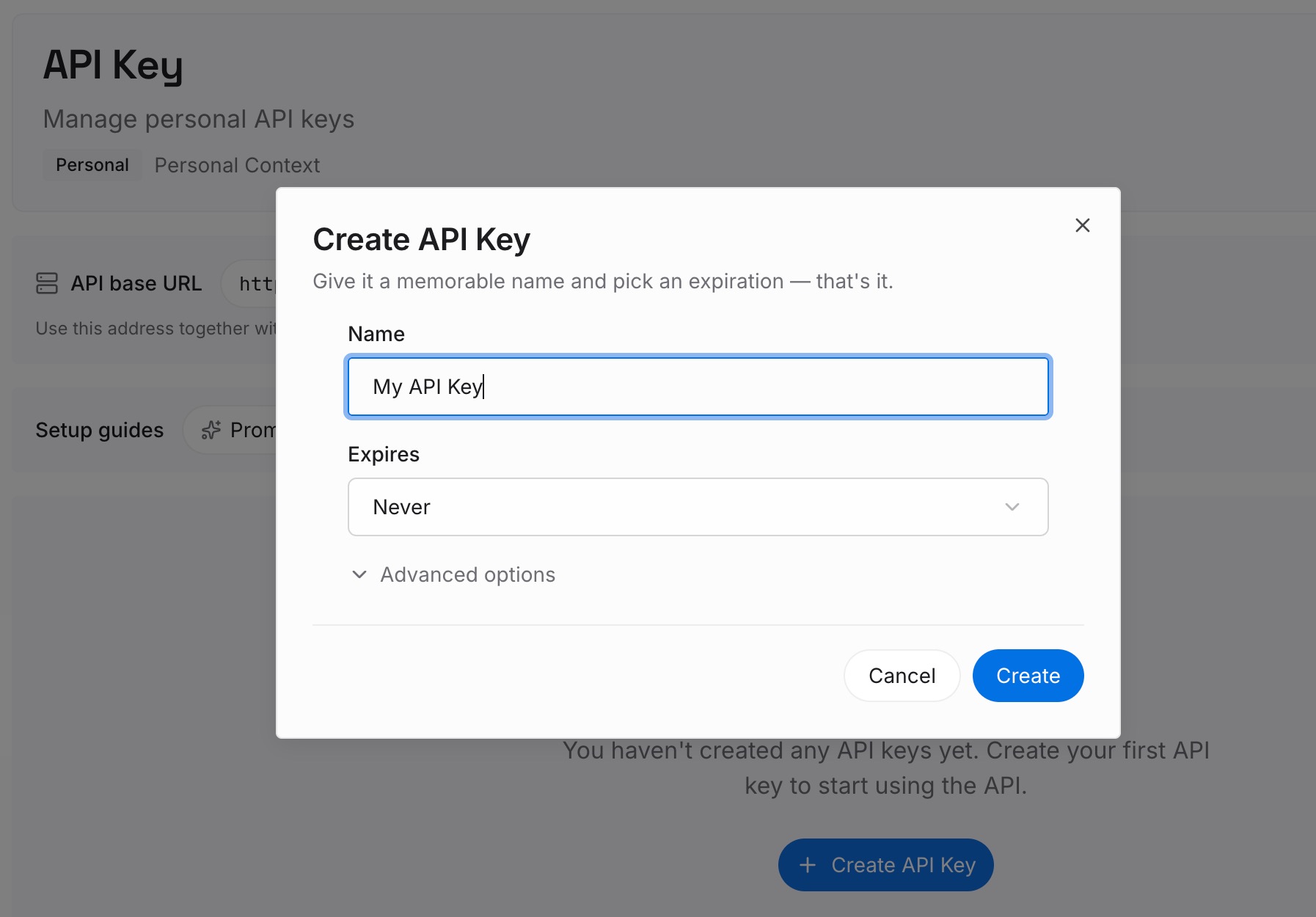
Step 1: Create an API key
Sign in and generate a key from the dashboard. The key belongs to your MemoryLake workspace and is separate from your Claude account.
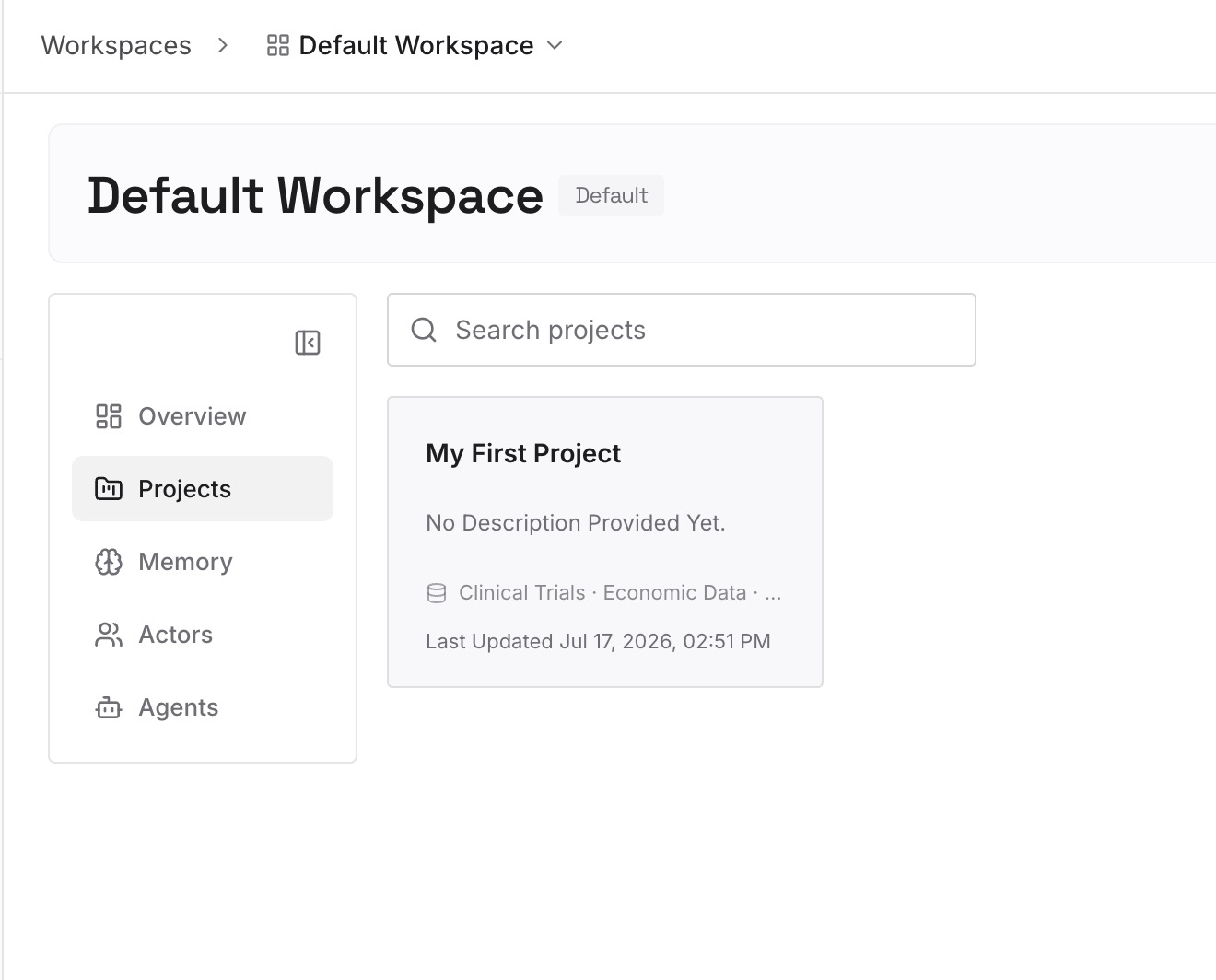
Step 2: Upload your first memories
Start with the handoff from Step 3 of the fix: settled decisions, open questions, and the conventions the session relied on. One point per entry, and keep secrets out.
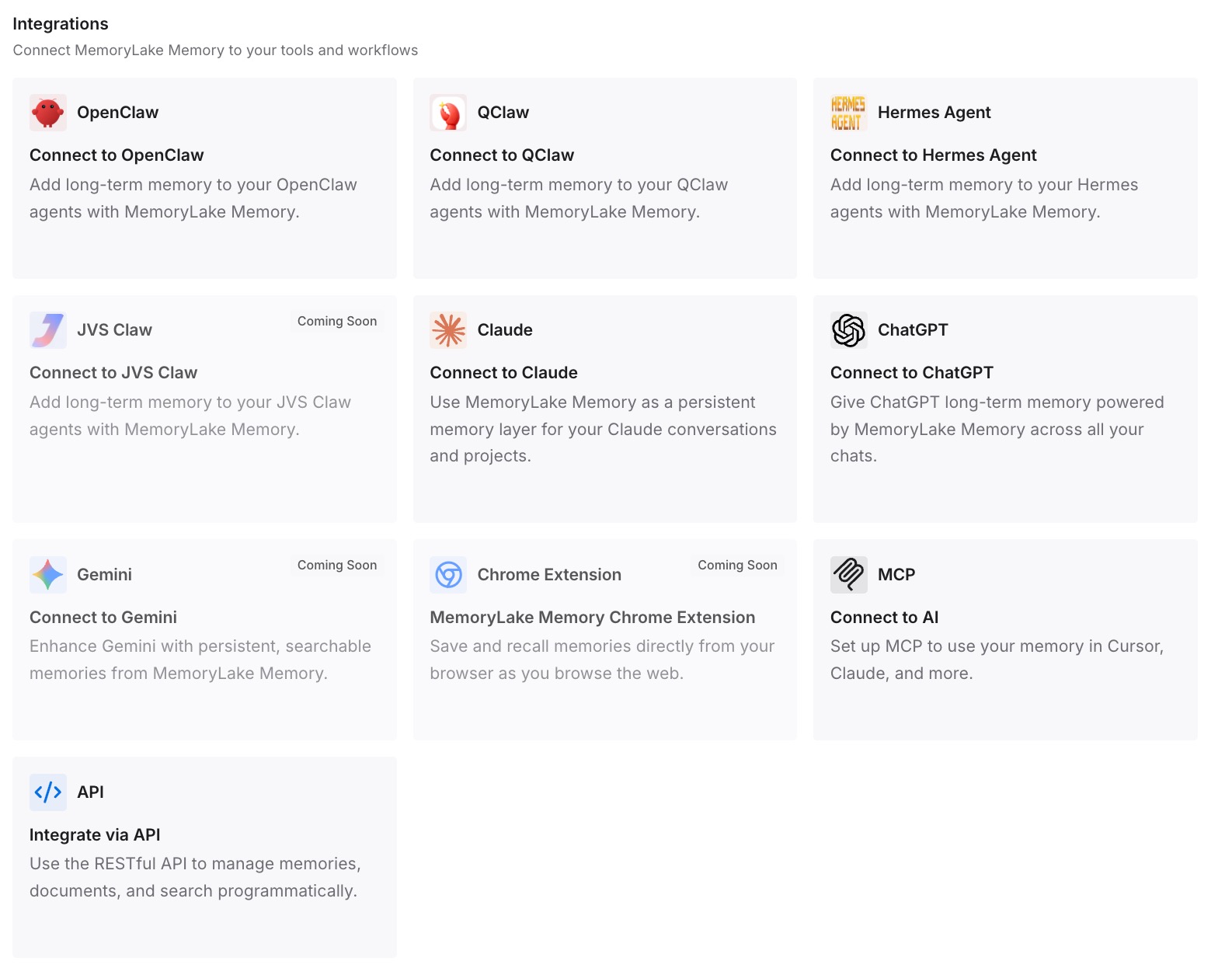
Step 3: Connect your AI & agents
Connect Claude Code and any other assistants you and your team use. The same entries are available in each one, whether or not the shared session is still around.
What this changes in practice
The first difference is safer sharing. You check access, names, and secrets before the link goes out, not after.
The second is fewer repeated explanations. A teammate reads the session for the how, and the written decisions for the why.
The third is a record that outlasts the session. Archiving or deleting a session doesn't take the decisions with it.
Best practices for sharing Claude Code sessions
Share cloud sessions with the visibility toggle. Then send the link as-is.
Require repository access on personal plans. It isn't on by default.
Scroll for secrets first. Sessions can contain credentials.
Remember Slack sessions are already shared. On Team and Enterprise, with Team visibility.
Use /export for local sessions. Or send them to the cloud from Desktop.
Don't expect live updates. Recipients see the state at the moment they open the link.
Write a handoff for anyone continuing the work. A link shows the past, not the plan.
Conclusion
Sharing a Claude Code session is a visibility setting on a cloud session, plus a link. On Team and Enterprise, Team visibility reaches your organization, repository access is checked by default, and your name shows. On Pro, Max, and Ultra, Public visibility reaches anyone signed in to claude.ai, repository access isn't checked by default, and Anthropic warns that sessions may contain code and credentials.
Check the session and your settings before you share. For anyone who needs to continue the work, send the decisions along with the link.