
The short answer
ChatGPT cannot push memory to Gemini directly. You'll copy Custom Instructions and saved Memory entries out of ChatGPT manually, then recreate them inside Gemini as Saved Info entries and as one or more Gems with their own instructions. Plan 20–40 minutes per workspace; chat history doesn't transfer. A shared MCP-based memory layer lets both tools read the same source instead.
Why people switch from ChatGPT to Gemini
Three patterns drive 2026 moves:
- Native Google Workspace context. Gemini reads Docs, Sheets, Slides, Drive, and Gmail without round-tripping files through uploads.
- Free or bundled access. Many users already pay for Google One or Workspace, making Gemini's tier feel "free" relative to a separate ChatGPT subscription.
- Long-context recall. Heavy document users move for Gemini's reputation on long inputs and multi-file synthesis.
What "memory" means in ChatGPT vs Gemini
These two systems use very different abstractions, so a literal copy never quite fits.
ChatGPT memory is Custom Instructions (a global pair of fields) plus Memory (a list of saved facts visible under Settings → Personalization → Memory). It is global to your account.
Gemini memory is Saved Info (text snippets stored to your Google account and pulled into conversations) plus Gems (custom personas with their own instructions, similar in shape to a Custom GPT). Recently chat-derived memory also appears via Past Chats / Activity, controlled in your Google Activity settings.
A ChatGPT Memory entry usually becomes a Gemini Saved Info entry. A ChatGPT Custom Instruction usually becomes part of a Gem's instructions.
Step 1: Export your ChatGPT memory
ChatGPT does not provide a single export for memory. Pull pieces by hand.
- Copy Custom Instructions. Profile → Settings → Personalization → Custom Instructions. Paste both fields into a text file.
- Copy each saved Memory entry. Same page → Memory. Each row becomes one line in your text file.
- List your Custom GPTs. If you rely on Custom GPTs, list each one's name, instructions, and Knowledge files. You'll rebuild these as Gems.
- Optional: request a data export. Settings → Data Controls → Export Data. The ZIP holds chat transcripts; useful only as an archive.
End state: a chatgpt-export/ folder with custom-instructions.txt, memory.txt, and one file per Custom GPT.
Step 2: Import into Gemini
Gemini accepts your context across two surfaces: Saved Info and Gems.
- Open Saved Info. Gemini settings → Saved Info. Click Add and paste each ChatGPT Memory entry as its own item — Gemini handles short, single-fact entries best.
- Create a Gem for each Custom GPT. Gem Manager → New Gem. Paste your ChatGPT Custom Instructions into the Gem's instructions, attach reference files where supported, and save.
- Adjust Workspace-aware behavior. If your ChatGPT memory referenced files you'd upload, store those files in Google Drive and tell the Gem to read from a specific folder so Gemini can pull them natively.
- Test recall. Start a fresh chat with the new Gem and ask a question that depends on a migrated Saved Info entry.
Gemini does not import ChatGPT's chat transcripts. Treat the ChatGPT export ZIP as an archive only.
What you'll still lose after migrating
- Memory-as-prose context. ChatGPT often saves loose narrative facts; Gemini's Saved Info prefers short statements and may quietly ignore long entries.
- Custom GPT Actions. API-backed Actions in Custom GPTs don't translate to Gems — you'd rebuild integrations.
- Cross-chat history continuity. Old ChatGPT threads stay in the export, but they don't influence Gemini.
- Ongoing sync. This is a snapshot. New ChatGPT memory added next week never reaches Gemini.
The better way: one memory layer, every AI
The deeper issue is structural: every assistant keeps memory in its own walled garden, so switching tools or running both in parallel means re-doing this work continuously.
MemoryLake sits between your tools as a durable memory layer. Both ChatGPT and Gemini (and any other MCP-compatible AI) can read from the same MemoryLake Project through a single endpoint.
- One source of truth. Update once; both tools see the change.
- Drop-in for new AIs. Adding Claude or Perplexity later is a config change, not a fresh migration.
- Standard file formats. PDFs, Word, Excel, PowerPoint, Markdown, and images live in MemoryLake's Document Drive as-is.
Connect MemoryLake in 3 steps
Step 1: Create a project and load your context
Sign in to MemoryLake, open Project Management, and click Create Project. Name it "ChatGPT ↔ Gemini shared context." Drag your existing files (PDF, Word, Excel, PowerPoint, Markdown, or images) into the Document Drive under My Space, then open the Documents Tab and click Add Documents. Paste your ChatGPT Custom Instructions and Memory entries into the Memories Tab via Add Memory.
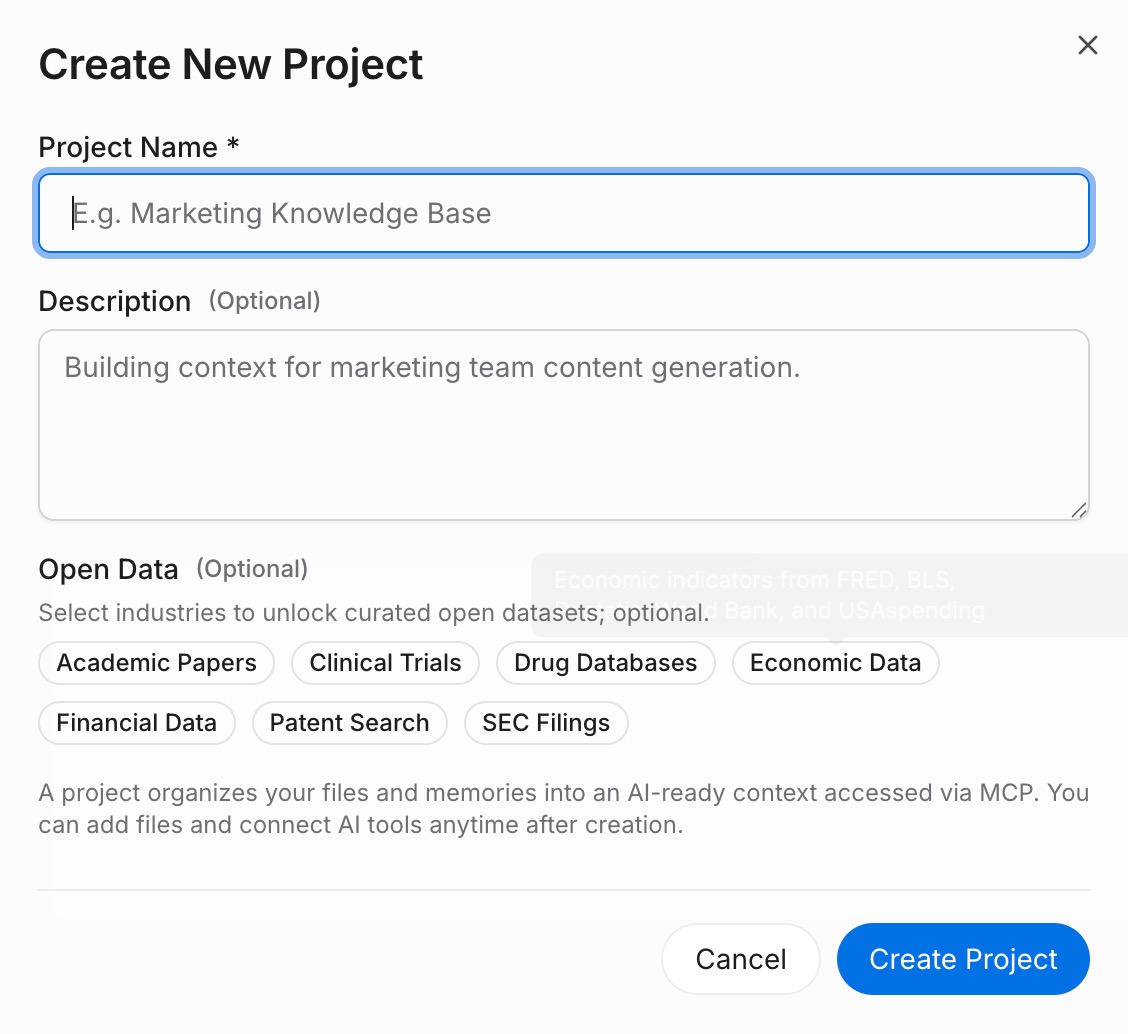
Step 2: Generate an MCP Server endpoint
Open the MCP Servers Tab inside the project, click Add MCP Server, describe it (e.g., "Gemini + ChatGPT bridge"), and click Generate. MemoryLake returns a Key ID, a Secret, and an Endpoint URL. Copy the Secret immediately — it is shown only once.
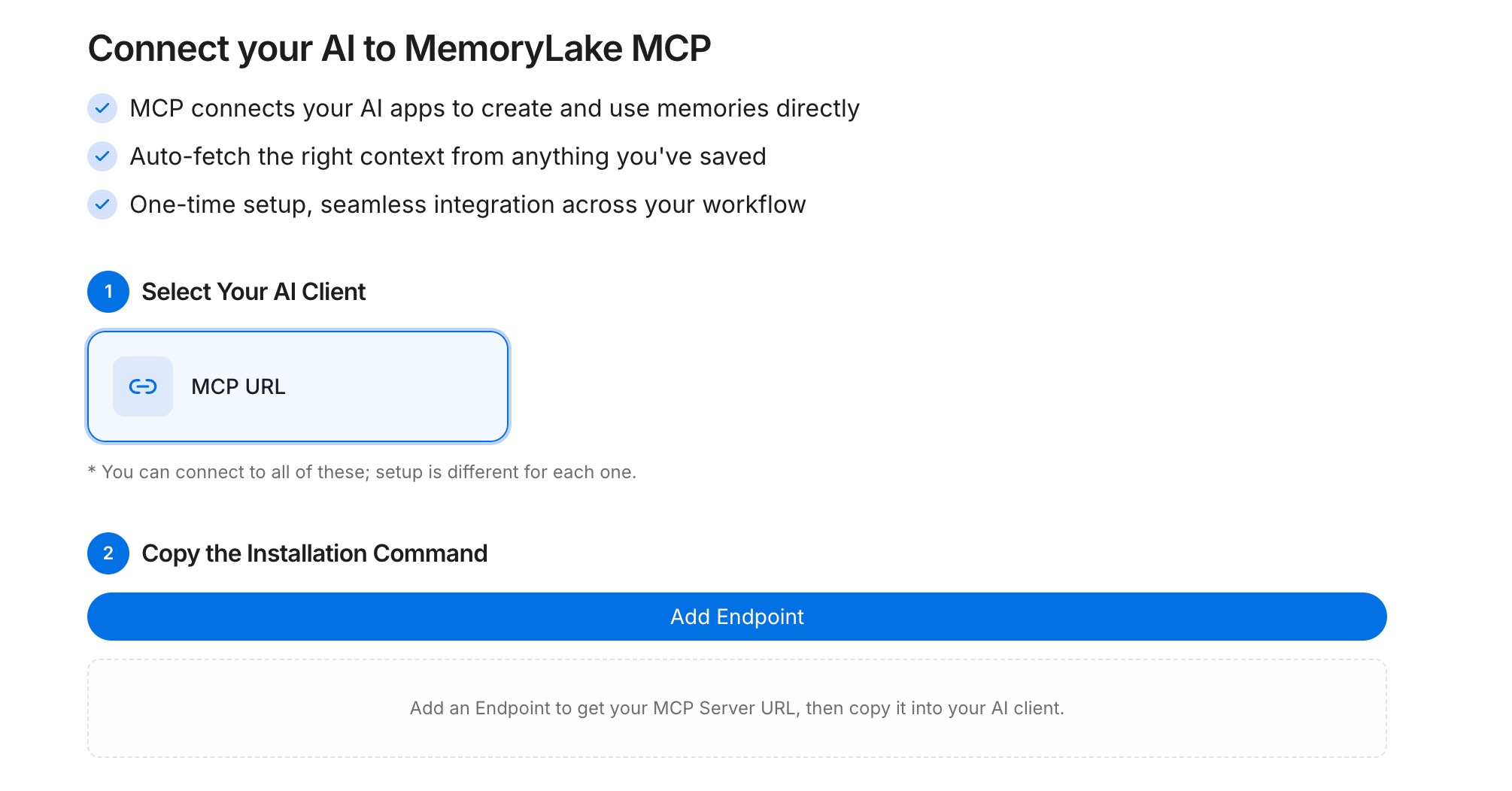
Step 3: Point both tools at the endpoint
For ChatGPT, call the REST API with the Bearer token from a Custom GPT Action so each chat can fetch the same project memory. For Gemini, build a small integration (or a Workspace add-on) that calls the same REST endpoint with the Bearer token and injects the returned context into your prompts or a Gem's system instructions.
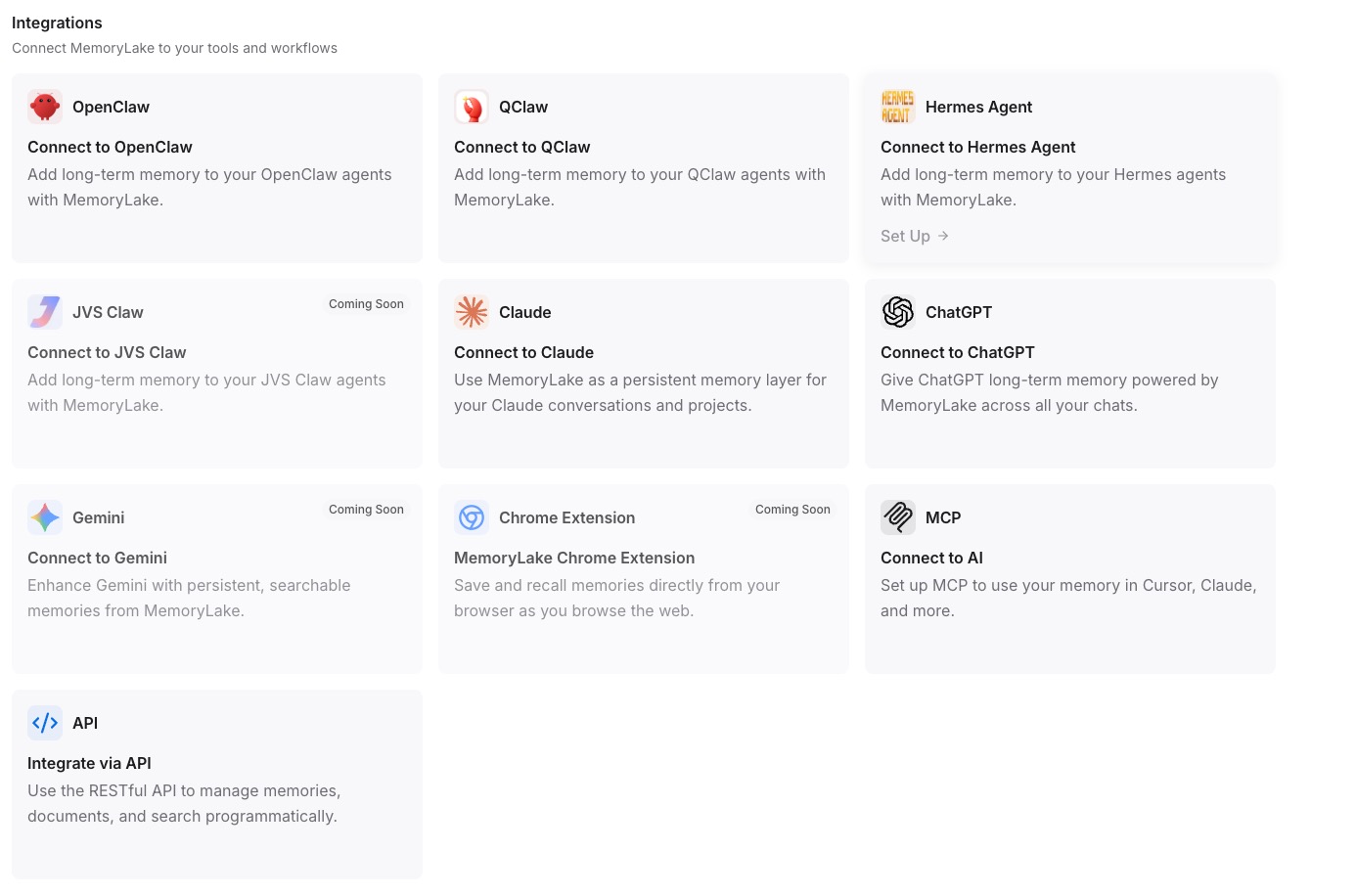
Native migration vs MemoryLake
| Dimension | Native ChatGPT → Gemini | MemoryLake bridge |
|---|---|---|
| Steps required | 8–11 manual | 3 one-time |
| Estimated time | 20–40 min per workspace | ~5 min setup |
| Preserves Saved Info / Memory shape | Partial (manual reshape) | Yes (text Memories survive verbatim) |
| Preserves version history | No | Yes |
| Syncs ongoing changes | No (snapshot only) | Yes |
| Works with a third AI later | No (rebuild) | Yes (add MCP) |