
The short answer
Claude Code has no native push to ChatGPT. You'll copy each repo's CLAUDE.md into a Custom GPT's Instructions (with repo docs as Knowledge), translate user-global guidance into ChatGPT Custom Instructions, and convert slash commands into either Conversation Starters or referenced prompts. Plan 15–25 minutes per repo. A shared MCP-based memory layer like MemoryLake lets both tools read the same source.
Why people switch from Claude Code to ChatGPT
Three drivers in 2026:
- Multimodal and voice. ChatGPT covers conversational and creative surfaces an IDE/terminal doesn't.
- GPT Store distribution. Sharing assistants with teammates or customers is easier.
- Browser-first workflows. Cross-device access matters for non-developer collaborators.
What "memory" means in Claude Code vs ChatGPT
Different scopes.
Claude Code memory centers on CLAUDE.md at the repo root, ~/.claude/CLAUDE.md (user-global), custom slash commands under .claude/commands/, and MCP servers configured in Claude Code settings.
ChatGPT memory spans Custom Instructions (global), Memory (saved facts pulled across chats), and Custom GPTs (project-like containers with their own Instructions and Knowledge).
A repo's CLAUDE.md becomes a Custom GPT's Instructions. ~/.claude/CLAUDE.md becomes Custom Instructions or Memory entries. Slash commands become Conversation Starters or referenced prompts.
Step 1: Export your Claude Code memory
Claude Code stores everything as plain files.
- Read the repo's
CLAUDE.md. Copy into a working text file. - Read
~/.claude/CLAUDE.md. Copy global guidance intouser-guidance.txt. - *List `.claude/commands/.md
.** Bundle into aslash-commands.md`. - Identify MCP servers. Note name, endpoint URL, and authentication for each — they'll become Actions.
End state: a claude-code-export/ folder per repo with CLAUDE.md, user-guidance.txt, slash-commands.md, and mcp-list.md.
Step 2: Import into ChatGPT
ChatGPT lands the import across three surfaces.
- Create a Custom GPT per repo. Open GPT Builder → Create. Paste
CLAUDE.mdinto Instructions. - Upload repo docs as Knowledge. Attach
README.md, ADRs, style guides, and reference content. - Add Conversation Starters. Use four most-used slash commands as starters; keep the rest referenced in Instructions.
- Translate user-global guidance. Settings → Personalization → Custom Instructions. Paste
~/.claude/CLAUDE.mdcontent. - Pin enduring facts to Memory. Settings → Personalization → Memory.
- Rebuild MCP servers as Actions. For each MCP server in mcp-list.md, build an OpenAPI spec and add as a Custom GPT Action.
- Validate. Open the Custom GPT and run a moved slash-command-equivalent prompt.
What you'll still lose after migrating
- Terminal-native flow. Run-and-edit loops don't translate to chat.
- Slash command invocation.
/<name>shortcuts become Conversation Starters or referenced prompts. - MCP composition depth. Replacing MCP with Actions loses fine-grained tool composition.
- Ongoing sync. New
CLAUDE.mdedits next week won't appear in your Custom GPT unless you redo the copy.
The better way: one memory layer, every tool
If you keep Claude Code for shipping and ChatGPT for everything else, per-tool drift starts immediately. Cross-repo standards end up in two places.
MemoryLake holds those rules once and exposes them through MCP. Claude Code reads MCP natively; ChatGPT can read MemoryLake through a Custom GPT Action calling its REST endpoint.
- One source of truth. Update once; both tools see the change.
- Cross-repo standards. Team conventions live above any single repo.
- Drop-in for the next tool. Add Cursor or Windsurf with a config change.
Connect MemoryLake in 3 steps
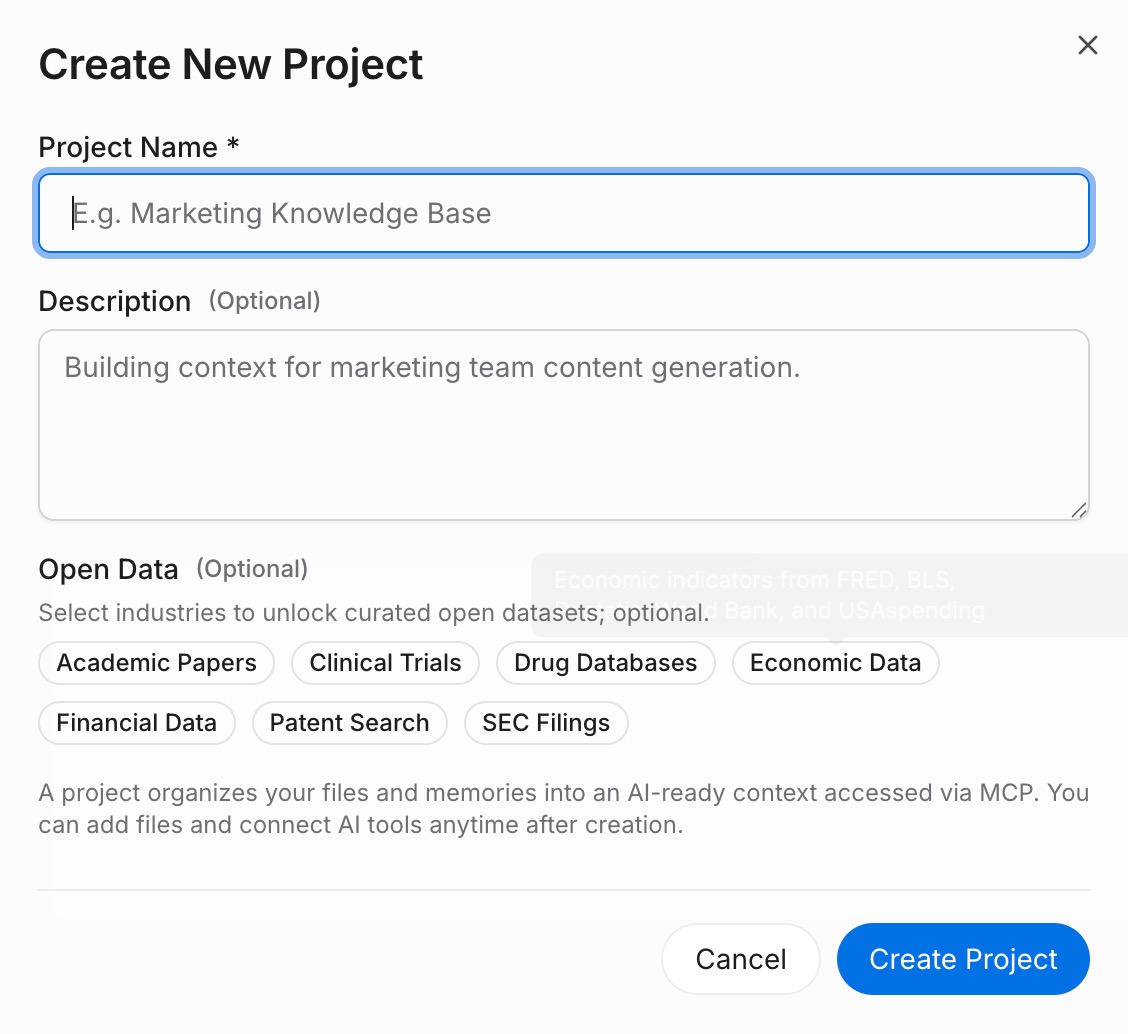
Step 1: Create a project and load your context
Sign in to MemoryLake, open Project Management, and click Create Project. Name it "Claude Code ↔ ChatGPT shared context." Drag reference docs (PDF, Word, Excel, PowerPoint, Markdown, or images) into the Document Drive under My Space, then open the Documents Tab and click Add Documents. Paste your CLAUDE.md, user guidance, and slash command bodies into the Memories Tab via Add Memory.
Step 2: Generate an MCP Server endpoint
Open the MCP Servers Tab inside the project, click Add MCP Server, describe it (e.g., "Claude Code + ChatGPT bridge"), and click Generate. MemoryLake returns a Key ID, a Secret, and an Endpoint URL. Copy the Secret immediately — it is shown only once.
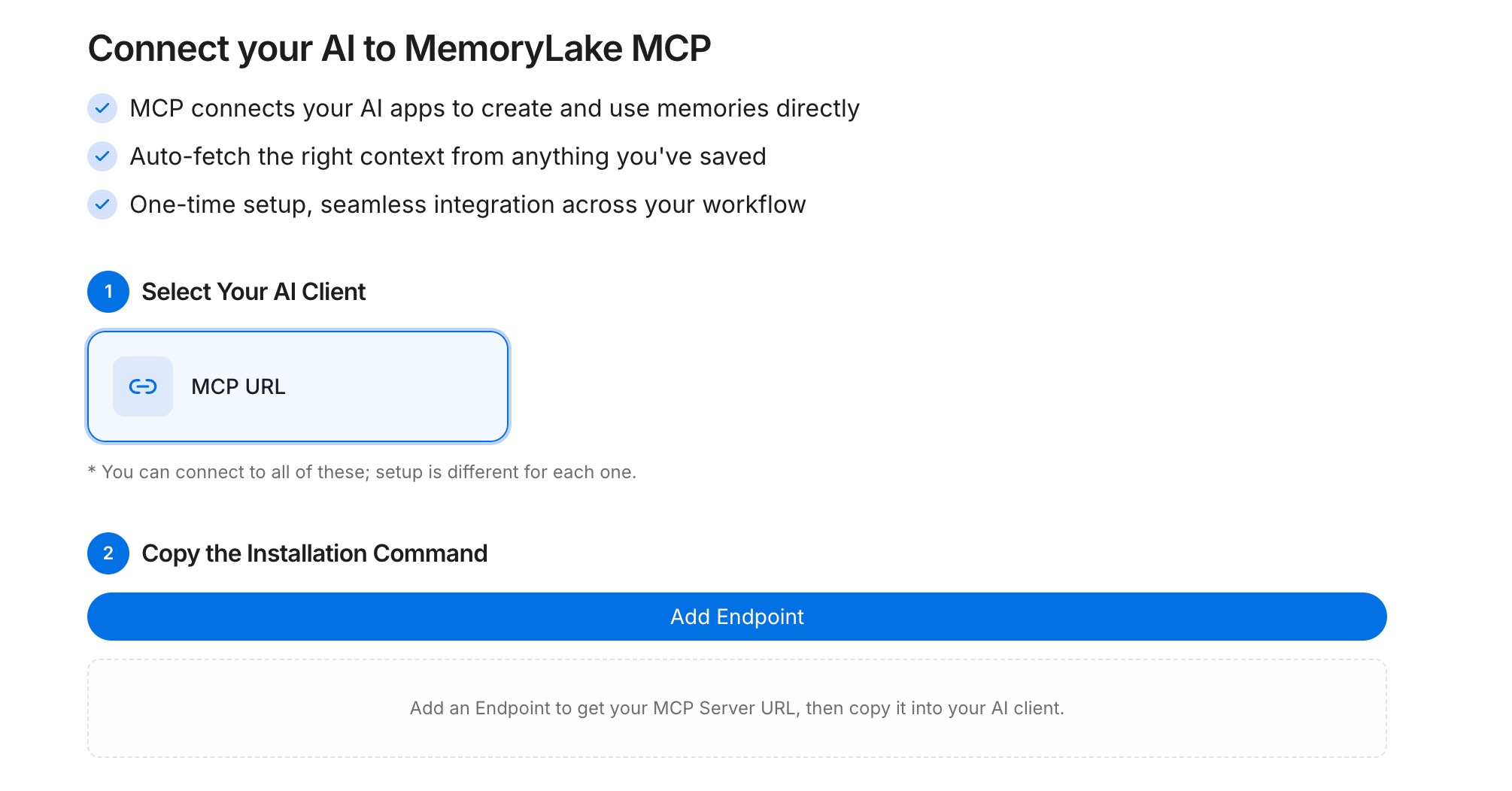
Step 3: Point both tools at the endpoint
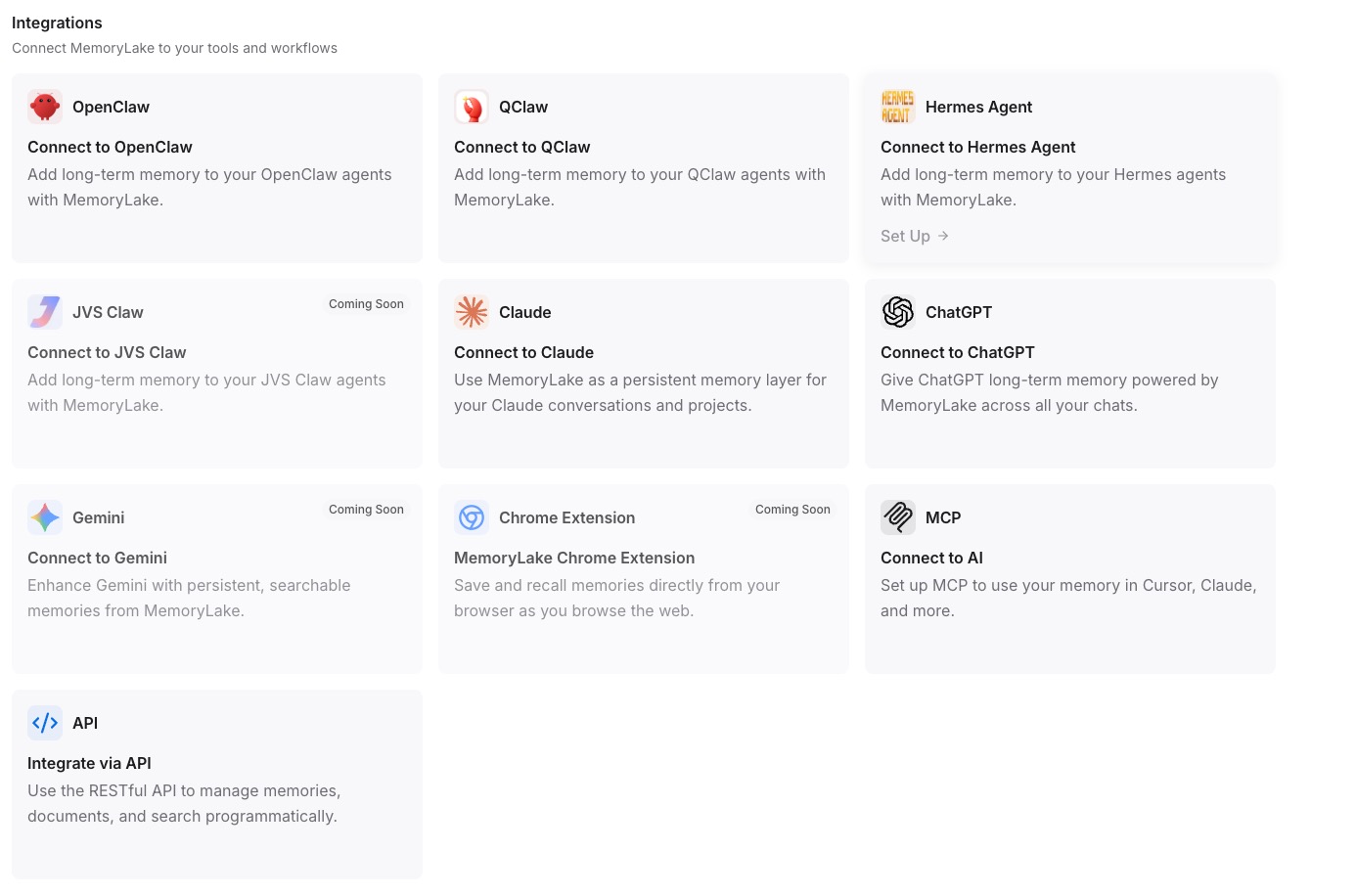
In Claude Code's settings, add a MemoryLake MCP server with the endpoint URL and the Secret as a Bearer token. For ChatGPT, configure a Custom GPT Action that calls the same REST endpoint with the Bearer token to fetch project memory.
Native migration vs MemoryLake
| Dimension | Native Claude Code → ChatGPT | MemoryLake bridge |
|---|---|---|
| Steps required | 8–11 manual | 3 one-time |
| Estimated time | 15–25 min per repo | ~5 min setup |
| Preserves repo boundary | Per-Custom-GPT only | Yes (one Project) |
| MCP servers / Actions | Rebuild as Actions | Endpoint shared |
| Syncs ongoing changes | No | Yes |
| Works with a third tool later | No (rebuild) | Yes (add MCP) |