
The short answer
Claude Code has no native push to Cursor. You'll copy CLAUDE.md content into .cursorrules (or split into .cursor/rules/*.mdc for structured behavior), convert slash commands into Notepads, and re-add MCP servers to Cursor's MCP configuration. Plan 15–30 minutes per repo. A shared MCP-based memory layer like MemoryLake lets both tools read the same source.
Why people switch from Claude Code to Cursor
Three drivers in 2026:
- Inline IDE editing. Cursor's Tab acceptance and inline edits feel faster for high-frequency small changes.
- VS Code ecosystem. Cursor's compatibility with VS Code extensions matters for teams already on that ecosystem.
- Visual diff and review flow. Some teams prefer Cursor's visual presentation over the terminal-only review in Claude Code.
What "memory" means in Claude Code vs Cursor
Similar intent, different surfaces.
Claude Code memory centers on CLAUDE.md at the repo root (project-level guidance), ~/.claude/CLAUDE.md (user-global guidance), custom slash commands (saved as .md files under .claude/commands/), and MCP servers configured in Claude Code settings.
Cursor memory spans .cursorrules (legacy single-file project rules), *`.cursor/rules/.mdc` (structured per-rule format with metadata), Notepads (reusable prompts), and user-level Rules for AI** in Settings.
A CLAUDE.md usually becomes a .cursorrules. Slash commands become Notepads. User-global guidance becomes user-level Rules for AI.
Step 1: Export your Claude Code memory
Claude Code stores everything as plain files you can read.
- Read the repo's
CLAUDE.md. Copy contents into a working text file. - Read
~/.claude/CLAUDE.md. Copy global guidance intouser-guidance.txt. - *List `.claude/commands/.md`.** Each one becomes a Notepad on the Cursor side.
- Document MCP servers. Open Claude Code settings and note each MCP server's name, endpoint URL, and authentication.
End state: a claude-code-export/ folder per repo containing CLAUDE.md, user-guidance.txt, commands/, and mcp-list.md.
Step 2: Import into Cursor
Cursor offers two paths: legacy single-file or structured per-rule.
- Quick path: create
.cursorrules. Paste yourCLAUDE.mdcontent as a starting point. - *Structured path: split into `.cursor/rules/.mdc
.** For each logical section inCLAUDE.md, create an.mdc` file with frontmatter (description, globs, alwaysApply) and the section as the body. - Convert slash commands to Notepads. Open Cursor's Notepads panel and create one Notepad per command, pasting its content.
- Translate user-global guidance. Open Cursor Settings → Rules for AI and paste your
~/.claude/CLAUDE.mdcontent. - Re-add MCP servers. Open Cursor's MCP configuration (e.g.,
.cursor/mcp.json) and add each MCP server from mcp-list.md with its endpoint and Bearer token. - Probe. Open Cursor's chat or Cmd-K and ask the model to perform a task that uses a moved rule.
What you'll still lose after migrating
- Slash command ergonomics.
/<name>invocation in the terminal doesn't map to Cursor's Notepad pull pattern. - Terminal-native flow. Long-running multi-step tasks were a Claude Code strength; the IDE workflow changes the cadence.
- Per-tool chat history. Claude Code's session history stays in the terminal.
- Ongoing sync. New
CLAUDE.mdedits next week won't appear in.cursorrulesunless you redo the copy.
The better way: one memory layer, every tool
If you bounce between Claude Code and Cursor, per-tool files drift. Anything broader than the repo (cross-repo conventions, team standards) lives in two places.
MemoryLake stores those rules once and exposes them through MCP. Both Cursor and Claude Code support MCP, so the same project context flows into both from a single endpoint.
- One source of truth. Update once; both tools see the change.
- Cross-repo standards. Team conventions live above any single repo.
- Drop-in for the next tool. Add Windsurf or a future agent with a config change.
Connect MemoryLake in 3 steps
Step 1: Create a project and load your context
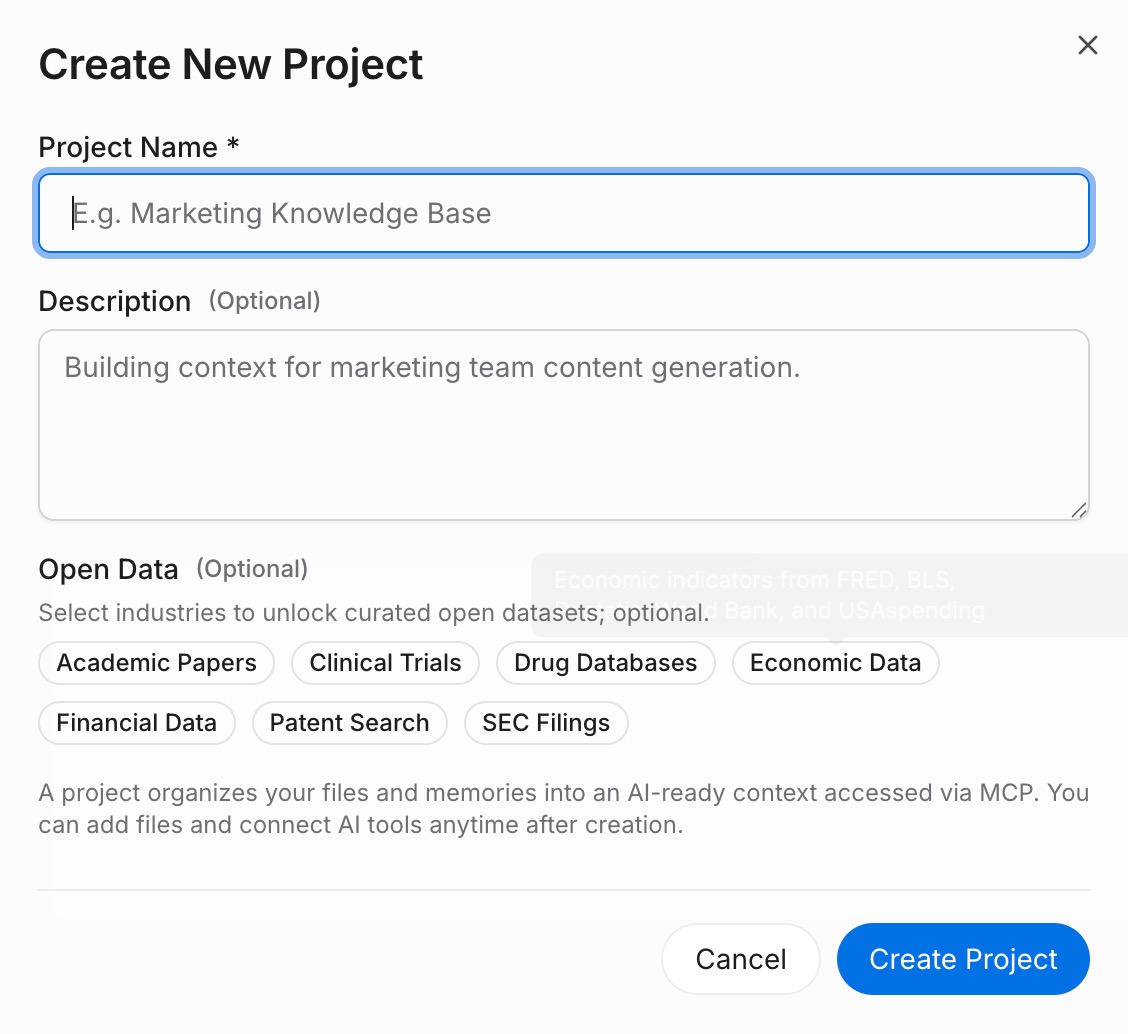
Sign in to MemoryLake, open Project Management, and click Create Project. Name it "Claude Code ↔ Cursor shared rules." Drag reference docs (style guides, ADRs as PDF, Word, Markdown, or images) into the Document Drive under My Space, then open the Documents Tab and click Add Documents. Paste your CLAUDE.md, user guidance, and slash command bodies into the Memories Tab via Add Memory.
Step 2: Generate an MCP Server endpoint
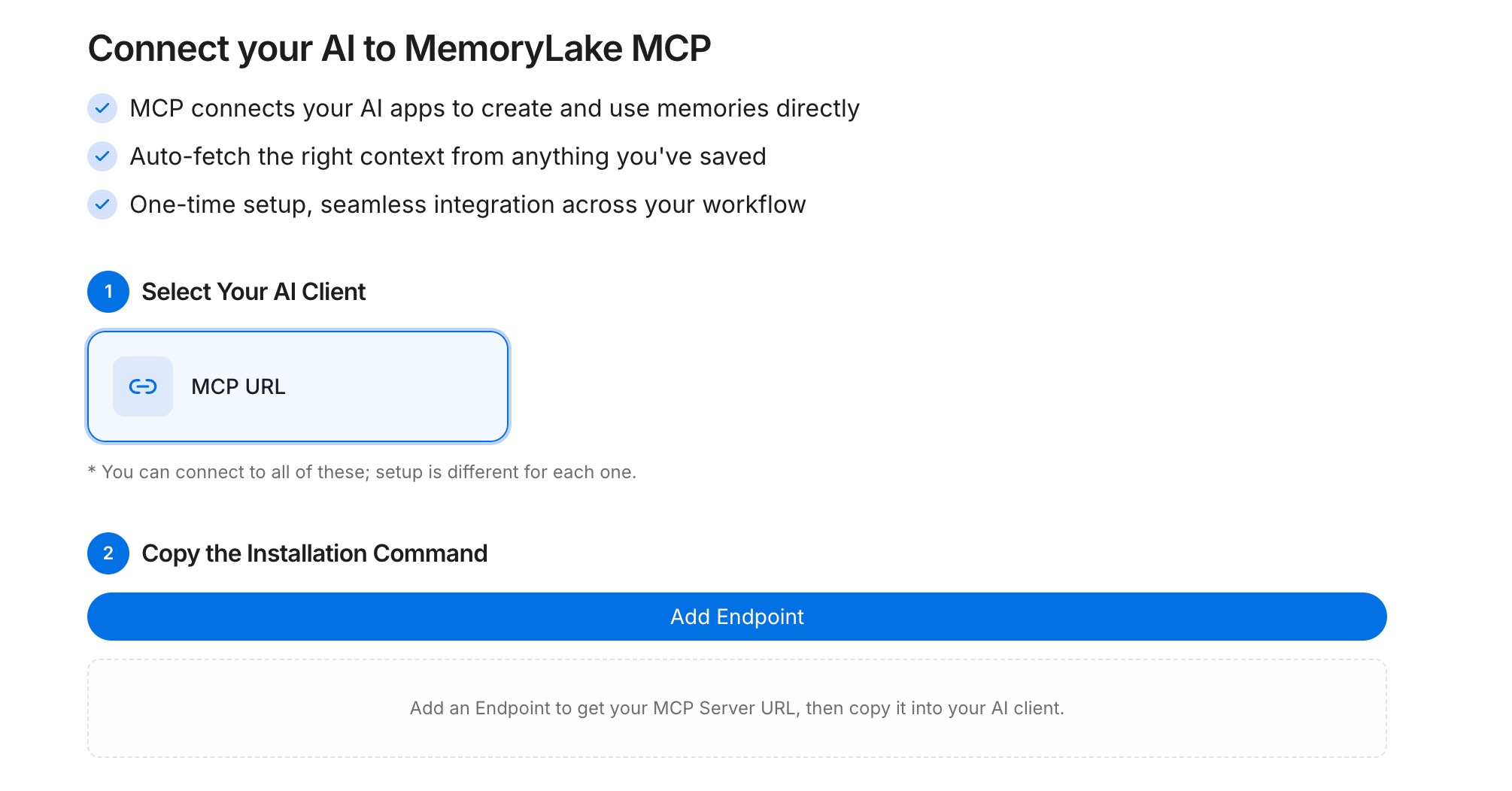
Open the MCP Servers Tab inside the project, click Add MCP Server, describe it (e.g., "Shared dev rules"), and click Generate. MemoryLake returns a Key ID, a Secret, and an Endpoint URL. Copy the Secret immediately — it is shown only once.
Step 3: Point both tools at the endpoint
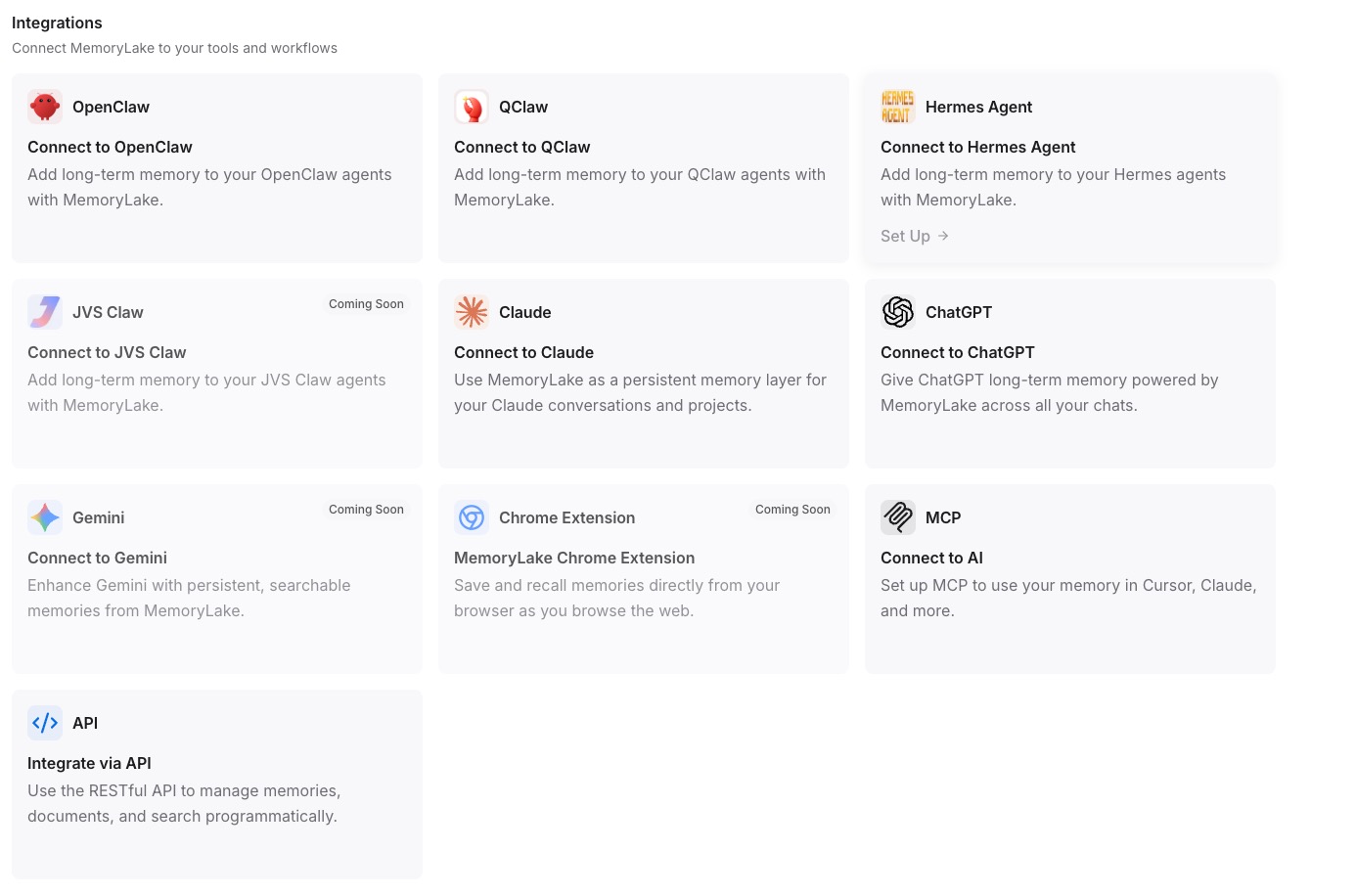
In Claude Code's settings, add a MemoryLake MCP server with the endpoint URL and the Secret as a Bearer token. In Cursor's MCP configuration (e.g., .cursor/mcp.json), add the same entry. Restart both clients.
Native migration vs MemoryLake
| Dimension | Native Claude Code → Cursor | MemoryLake bridge |
|---|---|---|
| Steps required | 7–10 manual | 3 one-time |
| Estimated time | 15–30 min per repo | ~5 min setup |
| Preserves slash command pattern | No (Notepad rebuild) | Memories survive verbatim |
| Cross-repo standards | Per-repo only | Shared once |
| Syncs ongoing changes | No | Yes |
| Works with a third tool later | No (rebuild) | Yes (add MCP) |