
The short answer
Notion AI has no native push to Claude Projects. You'll export each workspace area's pages or databases as Markdown or PDF, create a Claude Project per area, and upload the exports as Project Knowledge with a System Prompt that captures the original AI Block and Q&A behavior. Plan 20–40 minutes per workspace area. A shared MCP-based memory layer like MemoryLake lets both tools read the same source.
Why people switch from Notion AI to Claude Projects
Three drivers in 2026:
- Scoped Project boundaries. Claude Projects keep unrelated topics walled off cleanly.
- Long-document fidelity. Long workspace dumps load without truncation issues.
- MCP-native client. Claude Desktop's MCP support enables sharing tools across the chat surface.
What "memory" means in Notion AI vs Claude Projects
Different abstractions.
Notion AI memory is workspace-resident. Behavior depends on the pages you let it read, AI Blocks embedded in pages, and Q&A configurations scoping answers to subsets of the workspace.
Claude Projects are containers with Project Knowledge (uploaded files and pasted text) plus an optional System Prompt. Nothing is shared across Projects.
A Notion workspace area usually becomes a Project. Pages become Markdown/PDF uploads. AI Block instructions plus Q&A scope become the Project System Prompt.
Step 1: Export your Notion content
Notion exports pages individually or in bulk.
- Identify the workspace areas that map to logical Projects. One per major domain (engineering, marketing, ops, etc.).
- Export selected pages or databases. Use page menu (•••) → Export → Markdown & CSV (or PDF). For databases, export with subpages.
- Capture AI Block instructions. Copy each AI Block's prompt text into
ai-blocks.mdper area. - Capture Q&A scope. List which sources Notion AI Q&A was scoped to per area.
End state: one folder per intended Project with Markdown/CSV/PDF, ai-blocks.md, and qa-scope.md.
Step 2: Import into Claude Projects
Claude expects per-Project Knowledge.
- Create a Project per workspace area. Projects → Create Project. Name it after the area.
- Upload exported files as Project Knowledge. Click Add Content → Upload Files.
- Build a System Prompt from AI Block instructions and Q&A scope. Paste a consolidated prompt that captures the original behaviors and any "answer only from X" routing.
- Validate. Ask a question that depends on a moved page.
Claude does not read your Notion workspace live; uploads are static.
What you'll still lose after migrating
- Live workspace updates. Pages edited in Notion next week won't reach the Project until you re-export.
- In-page AI Block invocation. The in-Notion AI Block UX doesn't transfer.
- Q&A scoping nuance. Claude reads everything in Project Knowledge; nuanced source routing needs careful System Prompt instructions.
- Ongoing sync. A snapshot today doesn't propagate later changes.
The better way: one memory layer, every tool
If you keep Notion as the source of truth and Claude Projects for synthesis, per-tool drift starts immediately. Cross-area standards end up in two places.
MemoryLake holds your documents and rules once and exposes them through MCP. Claude Desktop reads MCP natively, so the same content flows in.
- One source of truth. Update content in MemoryLake; Claude Projects see the change.
- Standard file formats. PDFs, Word, Excel, PowerPoint, Markdown, and images live in MemoryLake's Document Drive as-is.
- Drop-in for the next AI. Add ChatGPT or Gemini later with a config change.
Connect MemoryLake in 3 steps
Step 1: Create a project and load your context
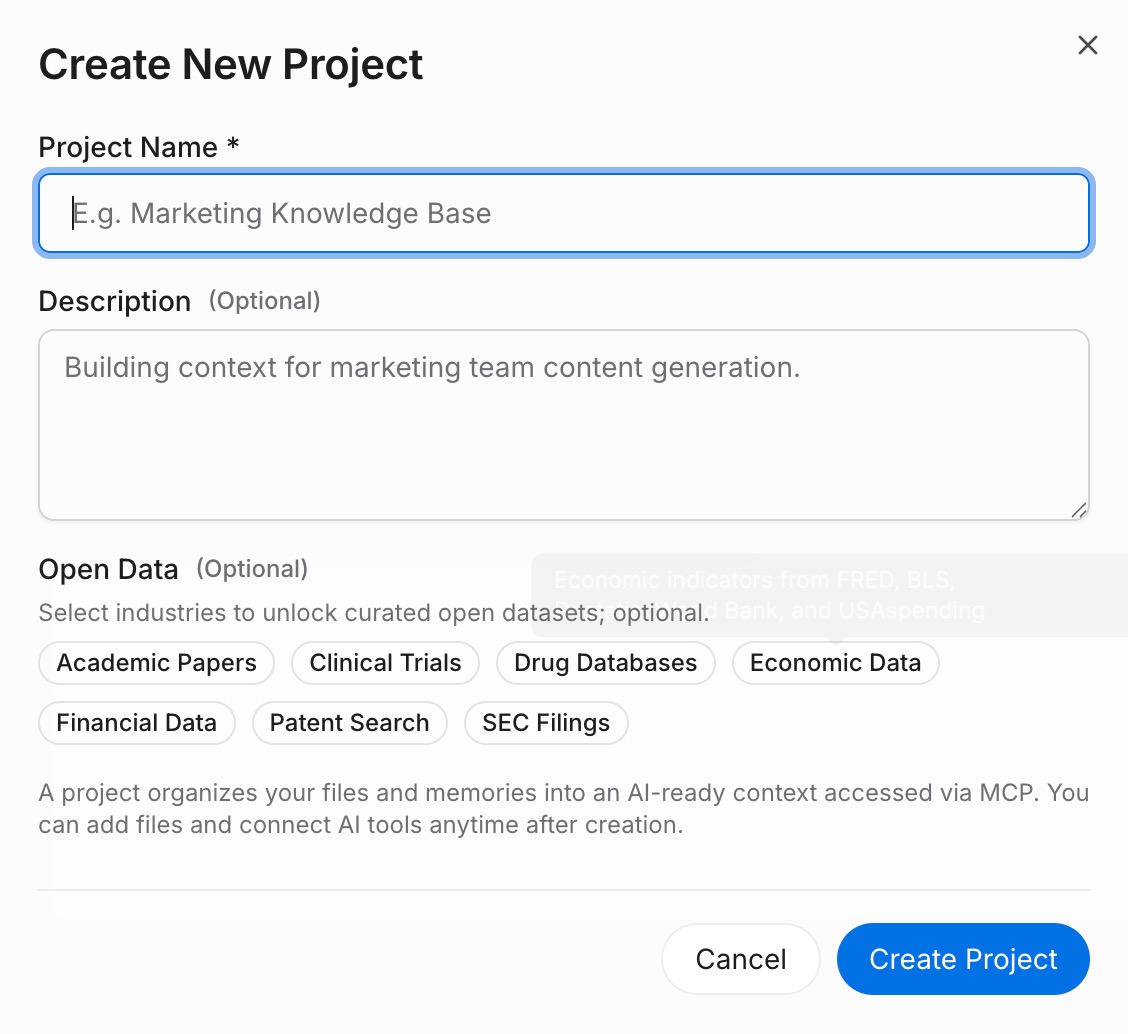
Sign in to MemoryLake, open Project Management, and click Create Project. Name it "Notion ↔ Claude Projects shared context." Drag your exported Notion files (PDF, Markdown, or images) into the Document Drive under My Space, then open the Documents Tab and click Add Documents. Paste your AI Block instructions and Q&A scope notes into the Memories Tab via Add Memory.
Step 2: Generate an MCP Server endpoint
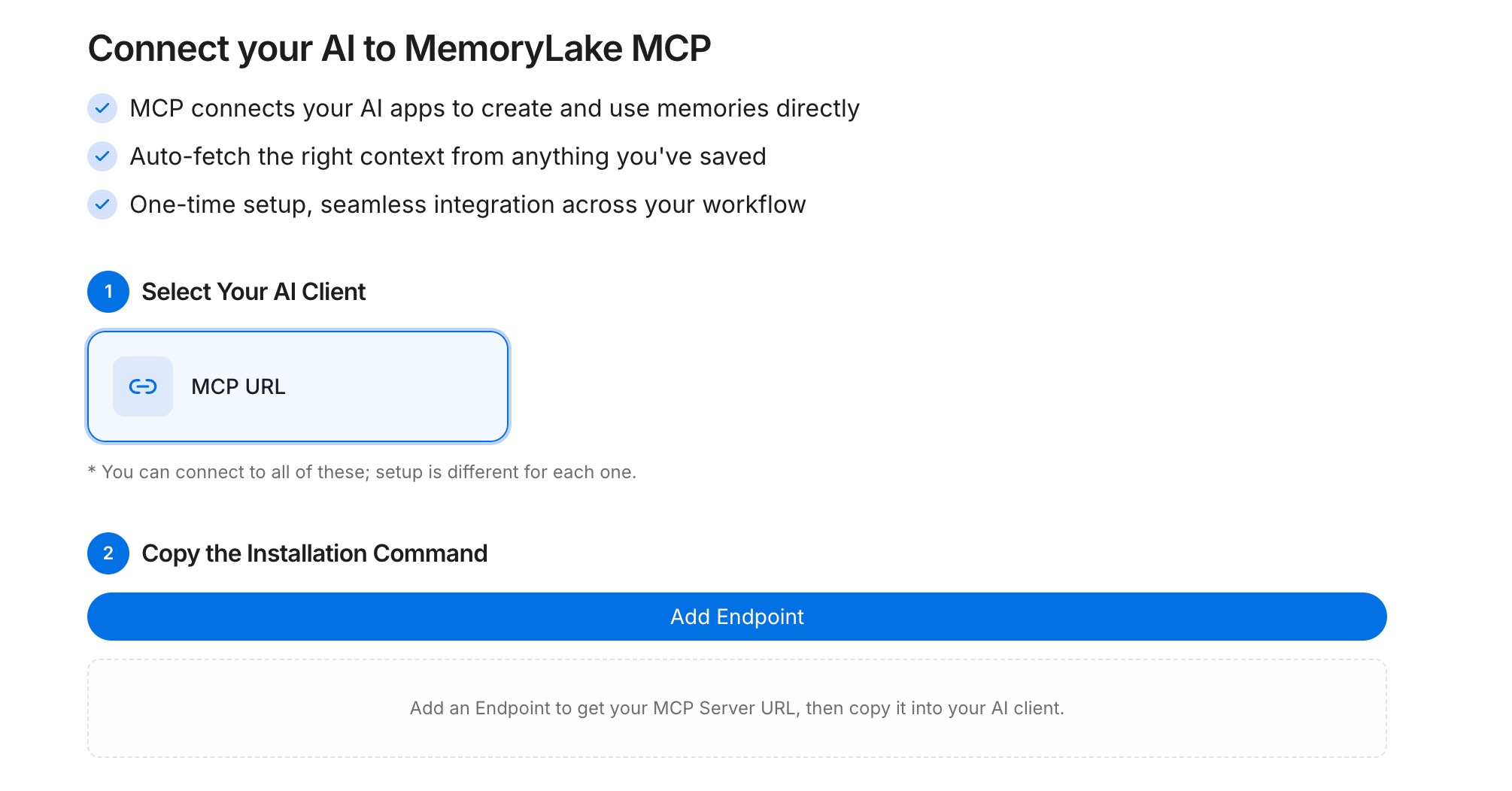
Open the MCP Servers Tab inside the project, click Add MCP Server, describe it (e.g., "Notion + Claude Projects bridge"), and click Generate. MemoryLake returns a Key ID, a Secret, and an Endpoint URL. Copy the Secret immediately — it is shown only once.
Step 3: Point Claude at the endpoint and refresh from Notion regularly
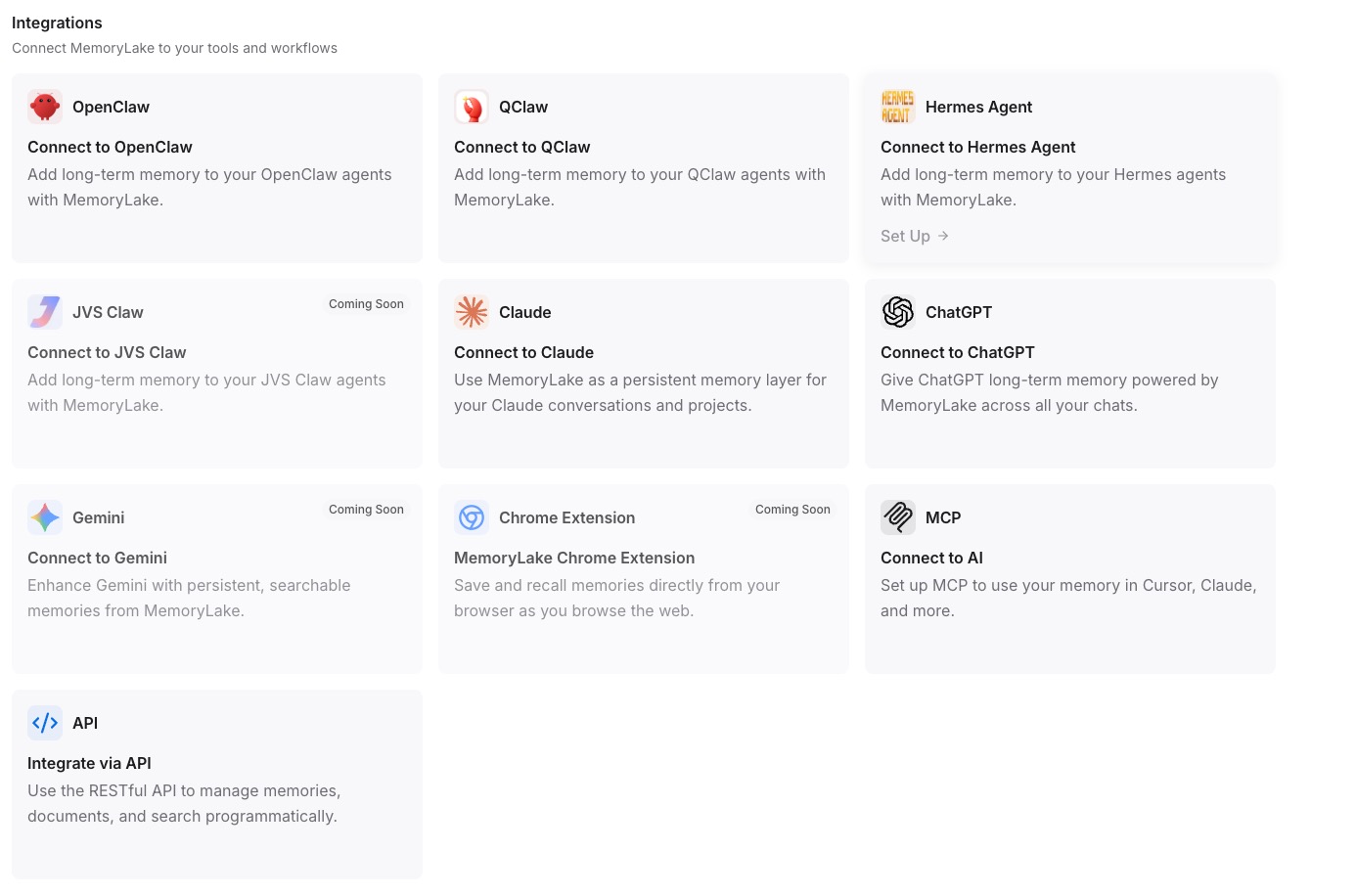
Add MemoryLake to Claude Desktop's MCP config with the endpoint URL and the Secret as a Bearer token, then restart Claude. When Notion content changes meaningfully, re-export and re-upload to MemoryLake to keep both surfaces current.
Native migration vs MemoryLake
| Dimension | Native Notion → Claude Projects | MemoryLake bridge |
|---|---|---|
| Steps required | 7–10 manual | 3 one-time |
| Estimated time | 20–40 min per workspace area | ~5 min setup |
| Preserves AI Block behavior | Manual (System Prompt) | Memories survive verbatim |
| Live workspace sync | No | Re-upload on update |
| Syncs ongoing changes | No | Yes (within MemoryLake) |
| Works with a third AI later | No (rebuild) | Yes (add MCP) |