
The short answer
Gemini does not push memory to Claude. You'll copy each Saved Info entry, transcribe every Gem's instructions, and download any Workspace files Gemini was reading, then rebuild them inside Claude as Project Knowledge and System Prompts — one Claude Project per Gem. Plan 25–50 minutes per workspace; chat history doesn't move. A shared MCP-based memory layer like MemoryLake lets both tools read the same source.
Why people switch from Gemini to Claude
Common 2026 drivers:
- Long-document fidelity. Claude's handling of long contracts, codebases, and research bundles is the most-cited reason teams move from Gemini for analysis work.
- Tighter Project boundaries. Users want isolated workspaces with their own knowledge and instructions, not a global Saved Info that leaks across contexts.
- MCP-native ecosystem. Claude Desktop's built-in MCP support makes it easier to plug into shared memory layers and developer tooling.
What "memory" means in Gemini vs Claude
A direct mapping never quite holds because the two systems treat context differently.
Gemini memory spans Saved Info (short snippets attached to your Google account), Gems (custom personas with their own instructions and optional referenced files), and Past Chats / Activity (governed by Activity controls).
Claude memory lives inside Projects. Each Project has its own Project Knowledge (uploaded files and pasted text) plus an optional System Prompt. There is no global cross-chat memory in Claude.
A Gem usually becomes a Claude Project. Saved Info entries become Project Knowledge bullets in a shared facts.md. Workspace files get downloaded and uploaded as Project Knowledge.
Step 1: Export your Gemini memory
Gemini does not bundle memory in one export.
- Copy each Saved Info entry. Gemini settings → Saved Info. Paste each entry into a single text file, one per line.
- Transcribe each Gem. Open Gem Manager. For every Gem, copy its name, instructions, and the list of referenced files into a folder per Gem.
- Collect Workspace files. For Gems that read from Drive, Docs, Sheets, or Slides, download originals (File → Download → choose PDF, DOCX, XLSX, or Markdown).
- Export Google Activity (optional). Google Takeout → My Activity → Gemini Apps. Useful as a chat archive only.
End state: a gemini-export/ folder with saved-info.txt and one subfolder per Gem.
Step 2: Import into Claude
Claude expects per-Project Knowledge.
- Create a Project per Gem. Projects → Create Project. Name it after the Gem.
- Paste the Gem's instructions as the System Prompt. Open Project Custom Instructions and paste the Gem's instructions, adapting any references from "Gemini" to "Claude."
- Add files and notes as Project Knowledge. Click Add Content → Upload Files or Paste Text. Upload the downloaded Workspace files. Paste relevant Saved Info entries that apply to this Project into a
facts.mdand add it as text content. - Decide on shared facts. If a Saved Info entry should apply across every Project, plan to add it to each Project — Claude has no global Memory layer.
- Validate. Open the Project and ask a question that depends on a moved file or fact.
Claude does not import Gemini chat history. Treat the Takeout archive as cold storage.
What you'll still lose after migrating
- Live Workspace pull. Claude does not read your Google Drive in real time — files become static snapshots.
- Cross-Gem facts. Saved Info applied account-wide; in Claude you'll re-add the same fact to every Project that needs it.
- Activity-derived hints. Gemini's Past Chats / Activity is opaque; you can't replicate its implicit context cues.
- Ongoing sync. Updates made in Gemini next month won't reach Claude unless you redo the migration.
The better way: one memory layer, every AI
The structural cost is the per-tool walls. Every assistant holds memory inside itself, so every switch is a rebuild.
MemoryLake holds your context once and exposes it through MCP. Both Gemini and Claude can read from the same MemoryLake Project through a single endpoint.
- One source of truth. Update once; both sides see the change.
- Drop-in for the next AI. Add a third tool with a config change.
- Originals stay intact. Files live in MemoryLake's Document Drive in native formats.
Connect MemoryLake in 3 steps
Step 1: Create a project and load your context
Sign in to MemoryLake, open Project Management, and click Create Project. Name it "Gemini ↔ Claude shared context." Drag your downloaded Gemini files (PDF, Word, Excel, PowerPoint, Markdown, or images) into the Document Drive under My Space, then open the Documents Tab and click Add Documents. Paste each Gem's instructions and your Saved Info entries into the Memories Tab via Add Memory.
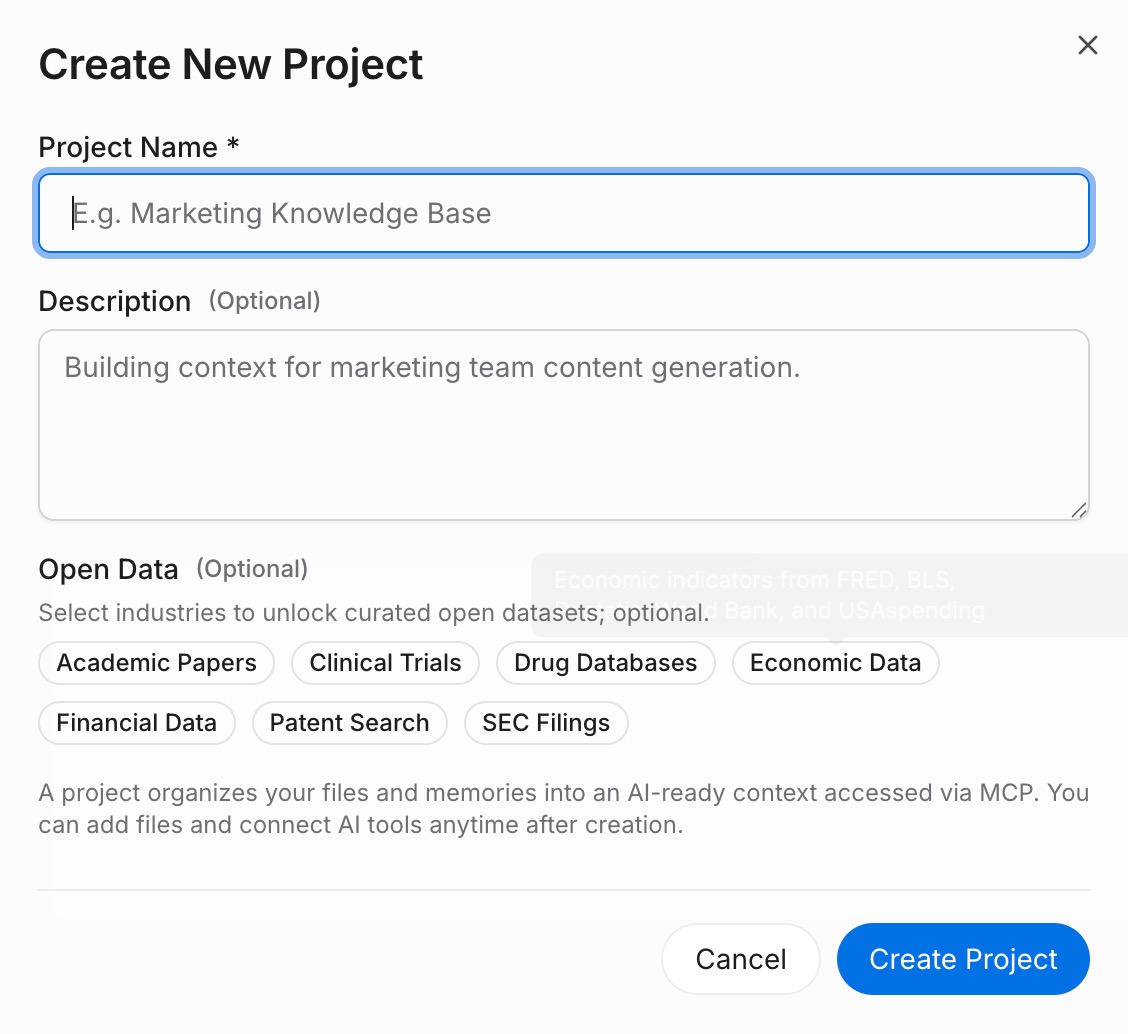
Step 2: Generate an MCP Server endpoint
Open the MCP Servers Tab inside the project, click Add MCP Server, describe it (e.g., "Claude + Gemini bridge"), and click Generate. MemoryLake returns a Key ID, a Secret, and an Endpoint URL. Copy the Secret immediately — it is shown only once.
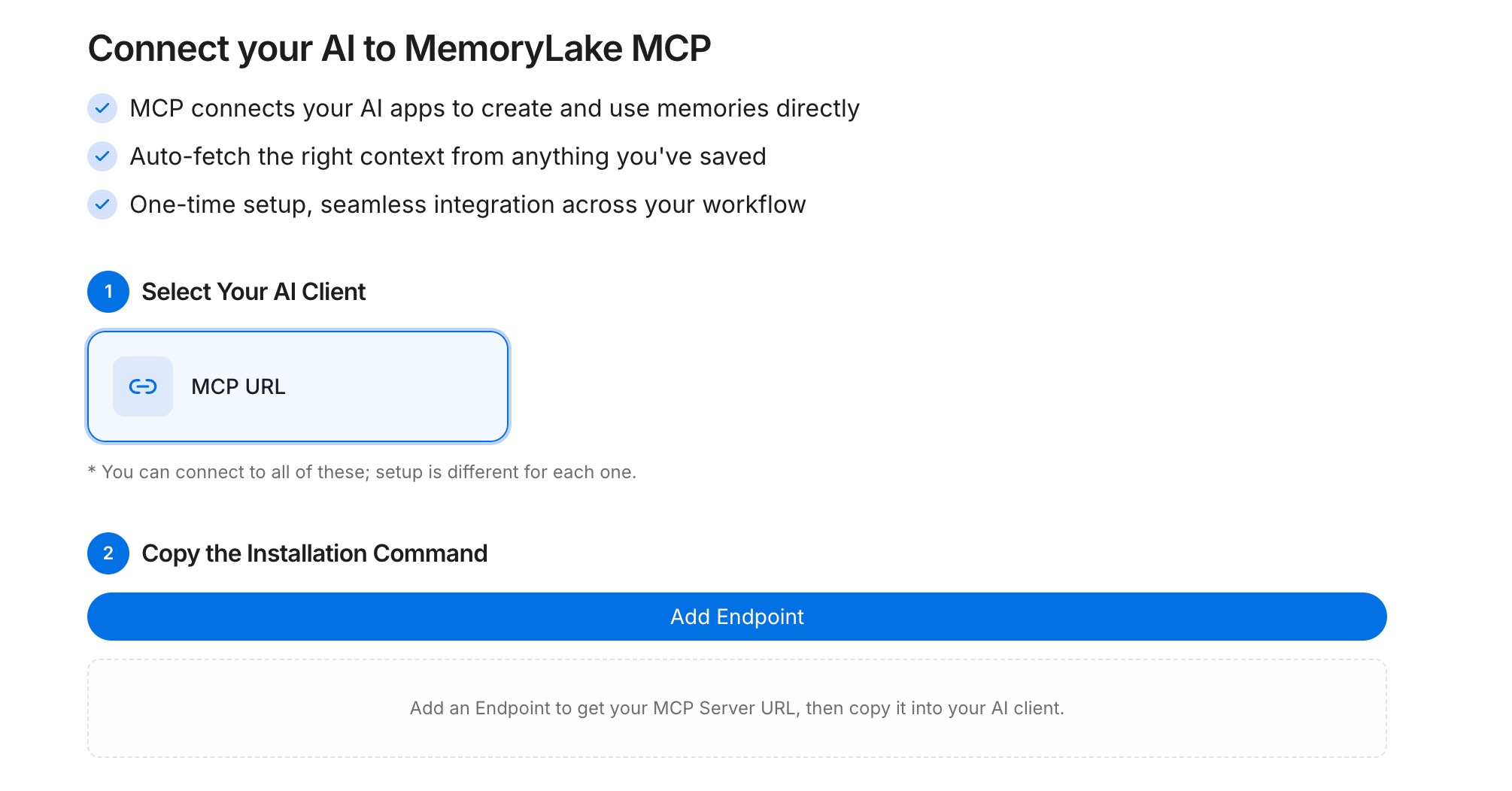
Step 3: Point both tools at the endpoint
Add MemoryLake to Claude Desktop's MCP config with the endpoint URL and the Secret as a Bearer token, then restart Claude. For Gemini, run a Workspace add-on or external integration that calls the same REST endpoint with the Bearer token and injects the returned context into a Gem's instructions or your prompt.
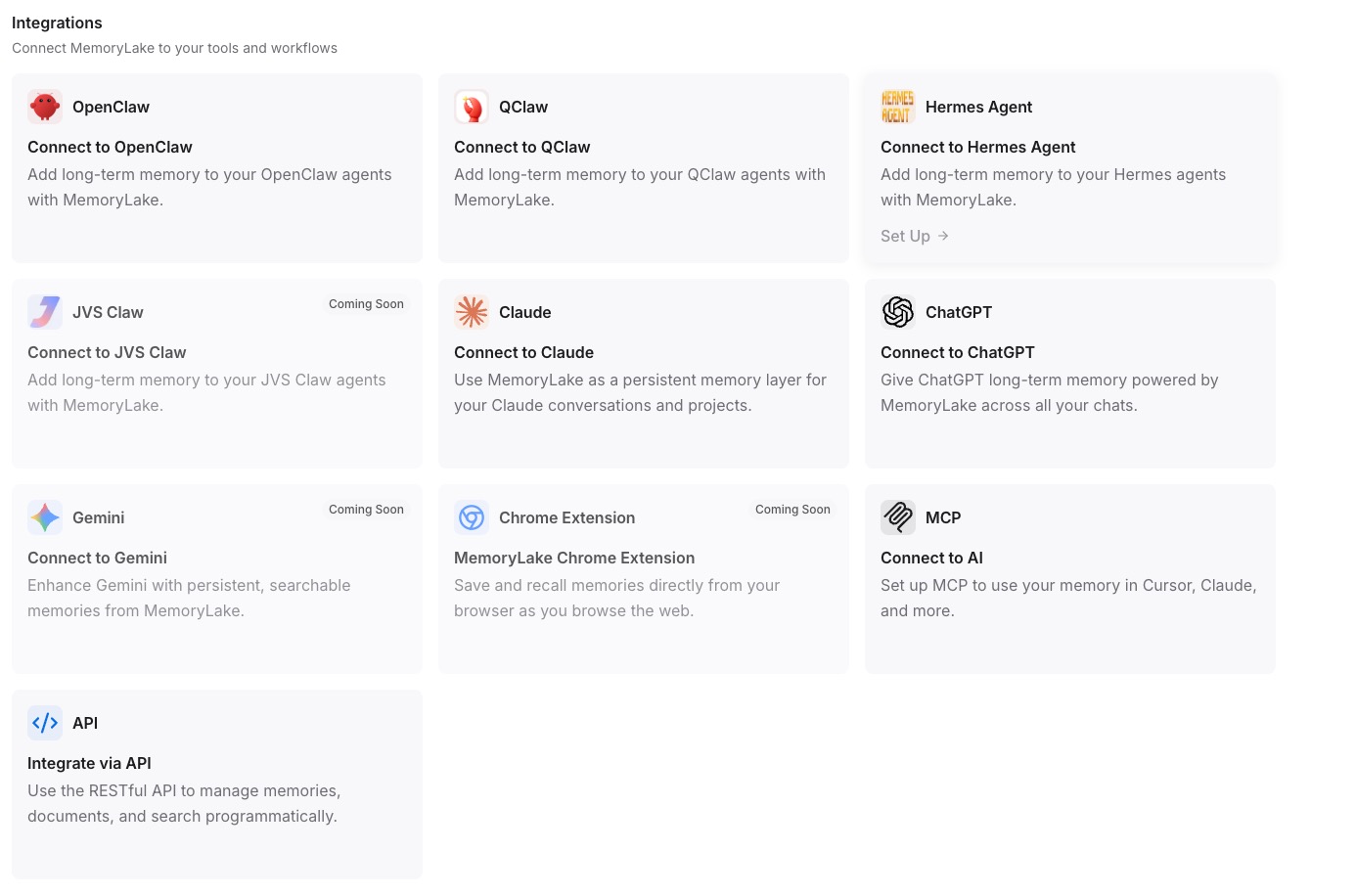
Native migration vs MemoryLake
| Dimension | Native Gemini → Claude | MemoryLake bridge |
|---|---|---|
| Steps required | 9–12 manual | 3 one-time |
| Estimated time | 25–50 min per workspace | ~5 min setup |
| Preserves Gem → Project boundary | Yes (manual) | Yes (one Project) |
| Live Workspace pull | Lost | Files stay in MemoryLake, both fetch live |
| Syncs ongoing changes | No | Yes |
| Works with a third AI later | No (rebuild) | Yes (add MCP) |